Setting Up Your iK Pay Gateway Plugin on WiX
Follow these simple steps to enjoy an easier and more affordable way to accept payments on your WiX website.
The next series of steps require switching between the iKhokha & Wix Screens.
Follow these simple steps to enjoy an easier and more affordable way to accept payments on your WiX website.
The next series of steps require switching between the iKhokha & Wix Screens.
Why trust iKhokha? We're highly rated on Google, Trust Index, and Hellopeter. We're also the winner of MTN's 2023 App of the Year.

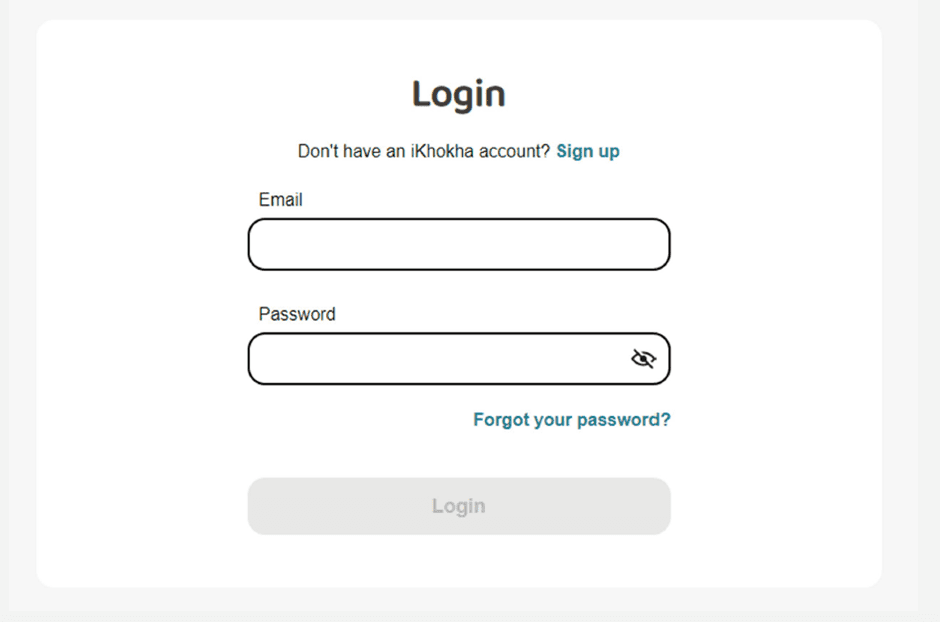
Generate a key by logging into your iKhokha dashboard.
Note: For security purposes, you may be prompted to update your password (please update, if asked).

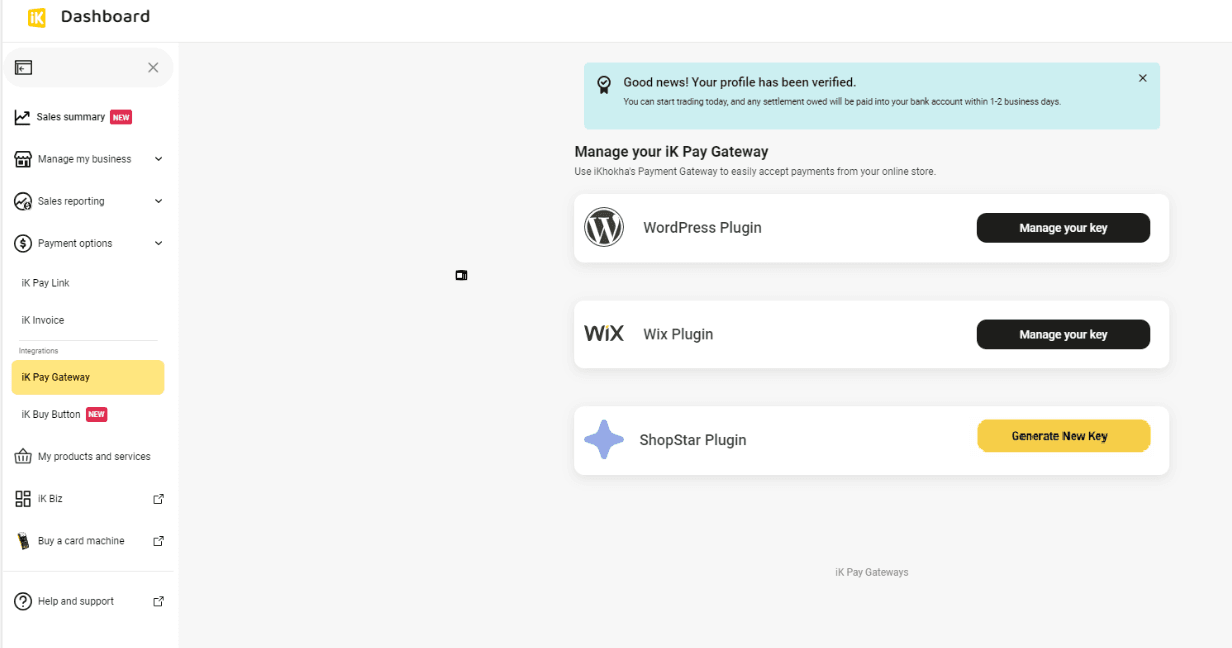
After you’ve successfully logged in, click on the “Payment options” drop down menu on the left, and select “Online shop payment”.
Select the “Generate New Key” next to the “Wix Plugin” option..

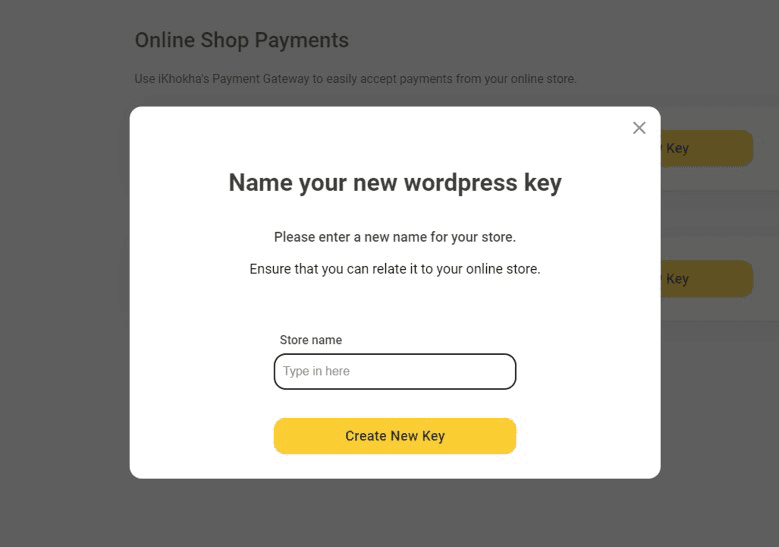
You will be prompted to provide your store with a name.
Note: Naming your store is for reference purposes only and won’t be
displayed anywhere customer facing nor does it form part of the validation
with the Wix system.

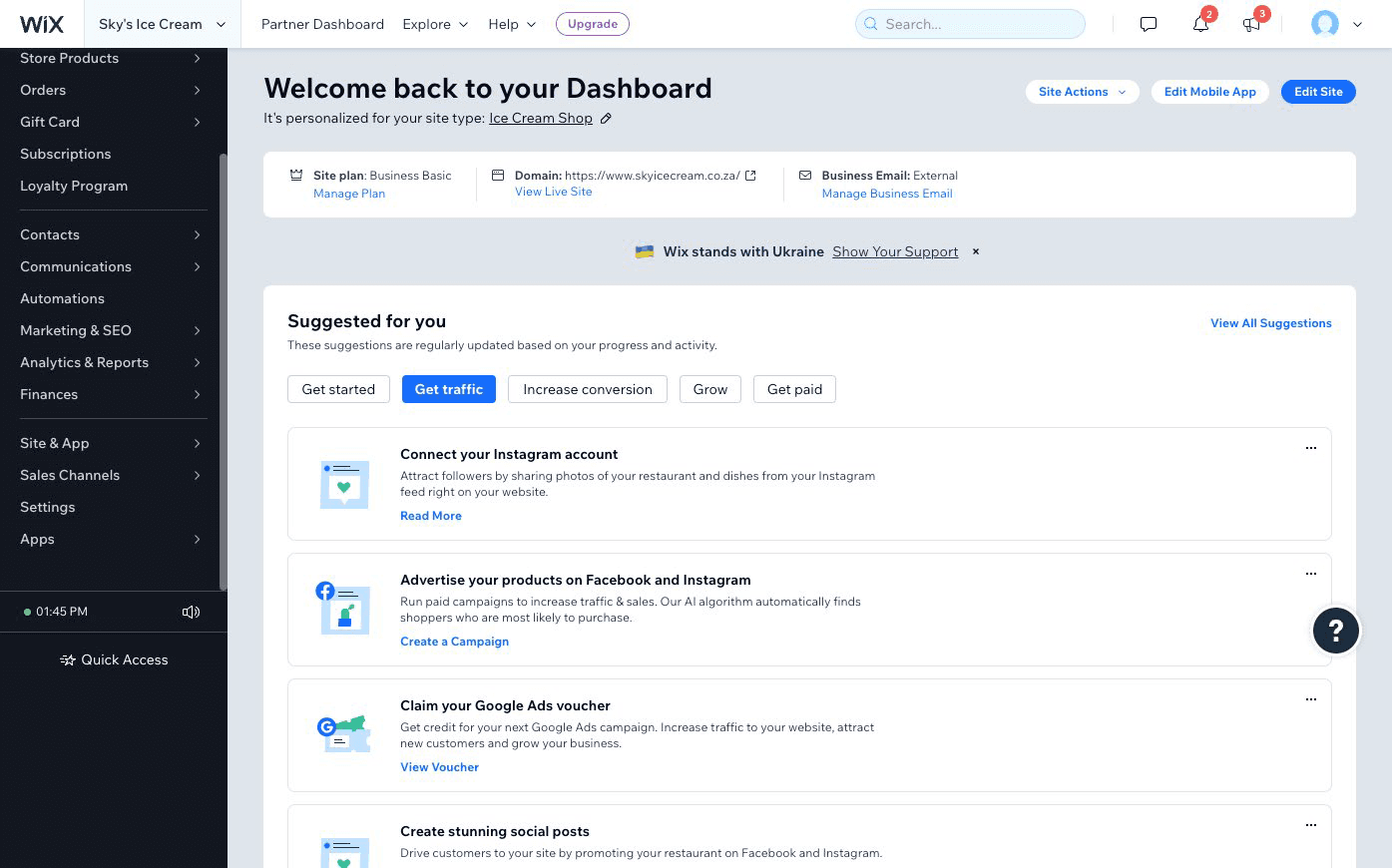
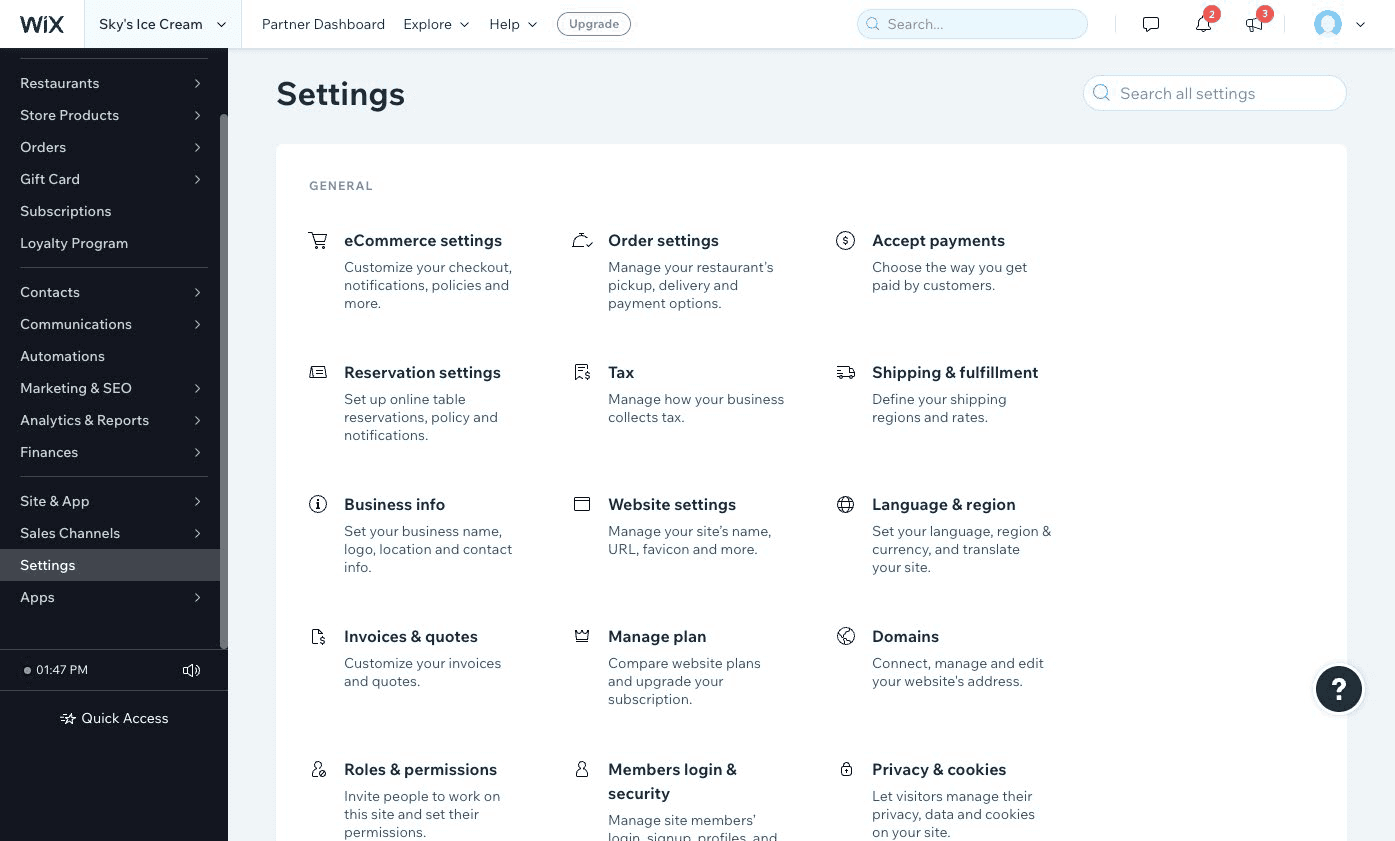
Log into your admin dashboard and navigate to “Settings”.

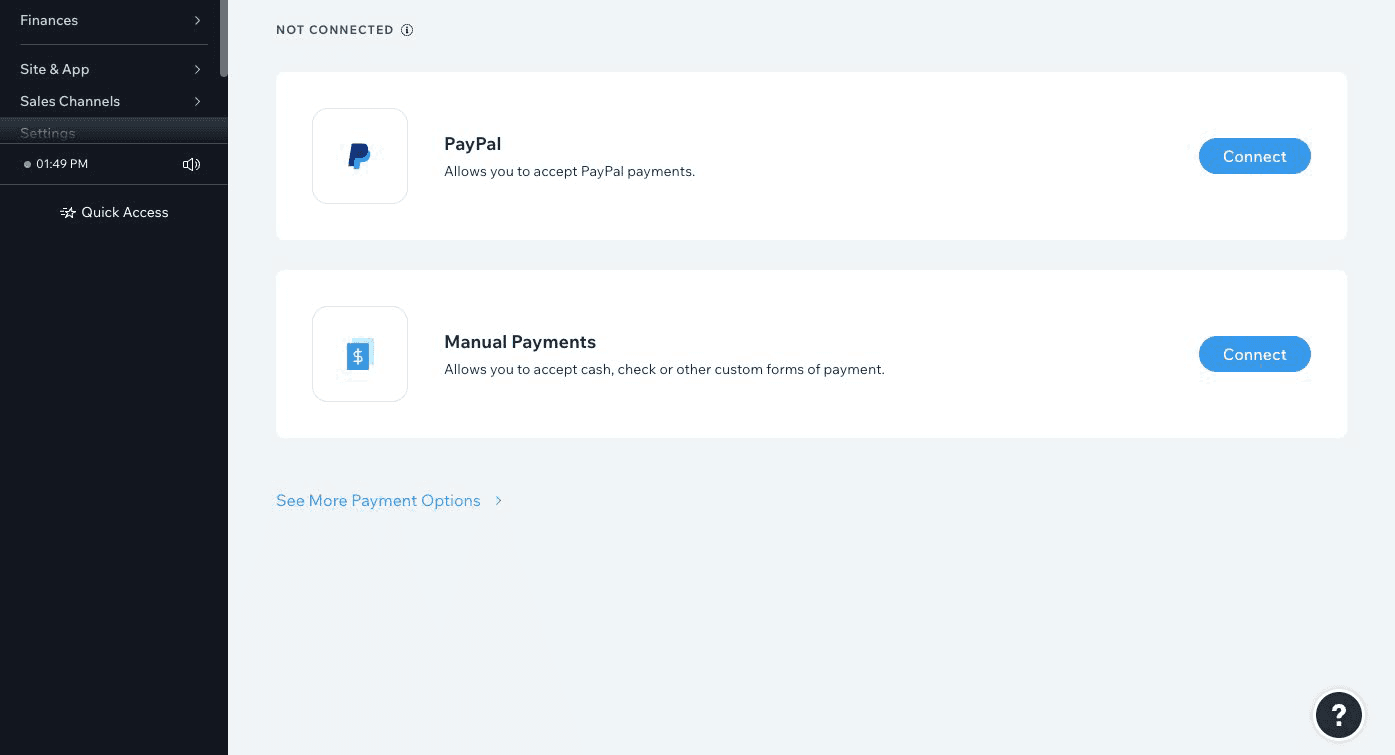
Find and click the thumbnail “Accept payments”.

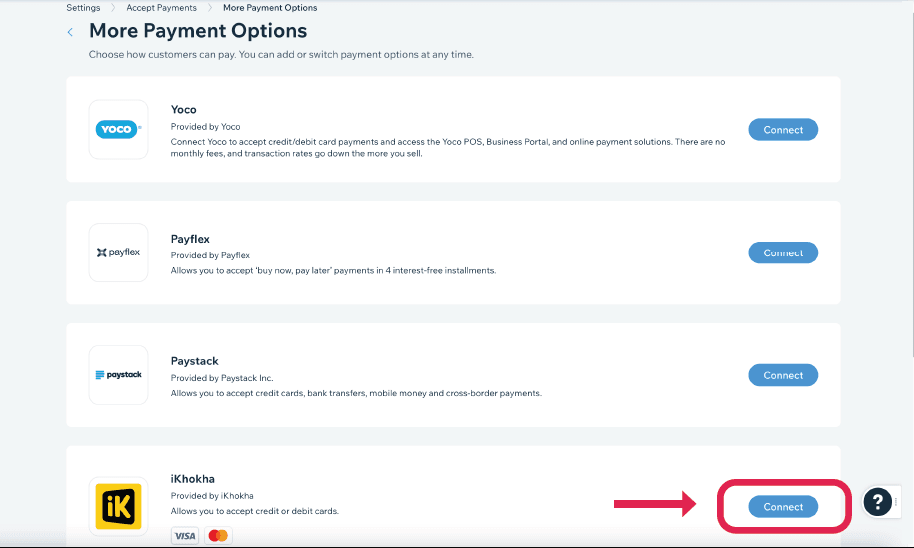
Click “See More Payment Options”.

Find the “iKhokha” plugin and click “Connect”
Note: If you don’t see the “iKhokha Payment” option, change your
Language & Region to South Africa in Settings.

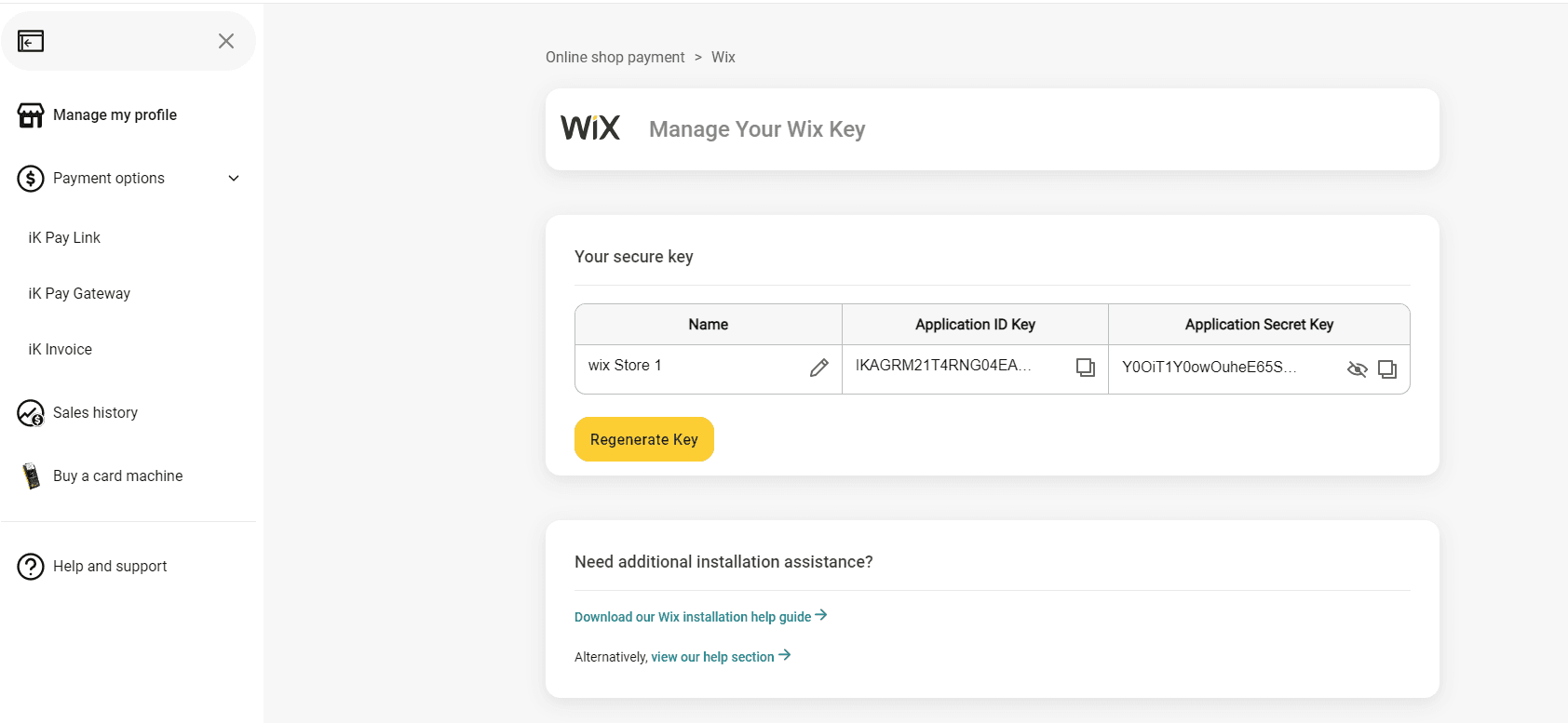
Navigate back to the iK Dashboard and the Wix key management screen.
Copy (ctrl + c) the “Application ID Key” (A) from the iKhokha Profile page.
Navigate back to the “Settings” tab on your Wix admin dashboard..

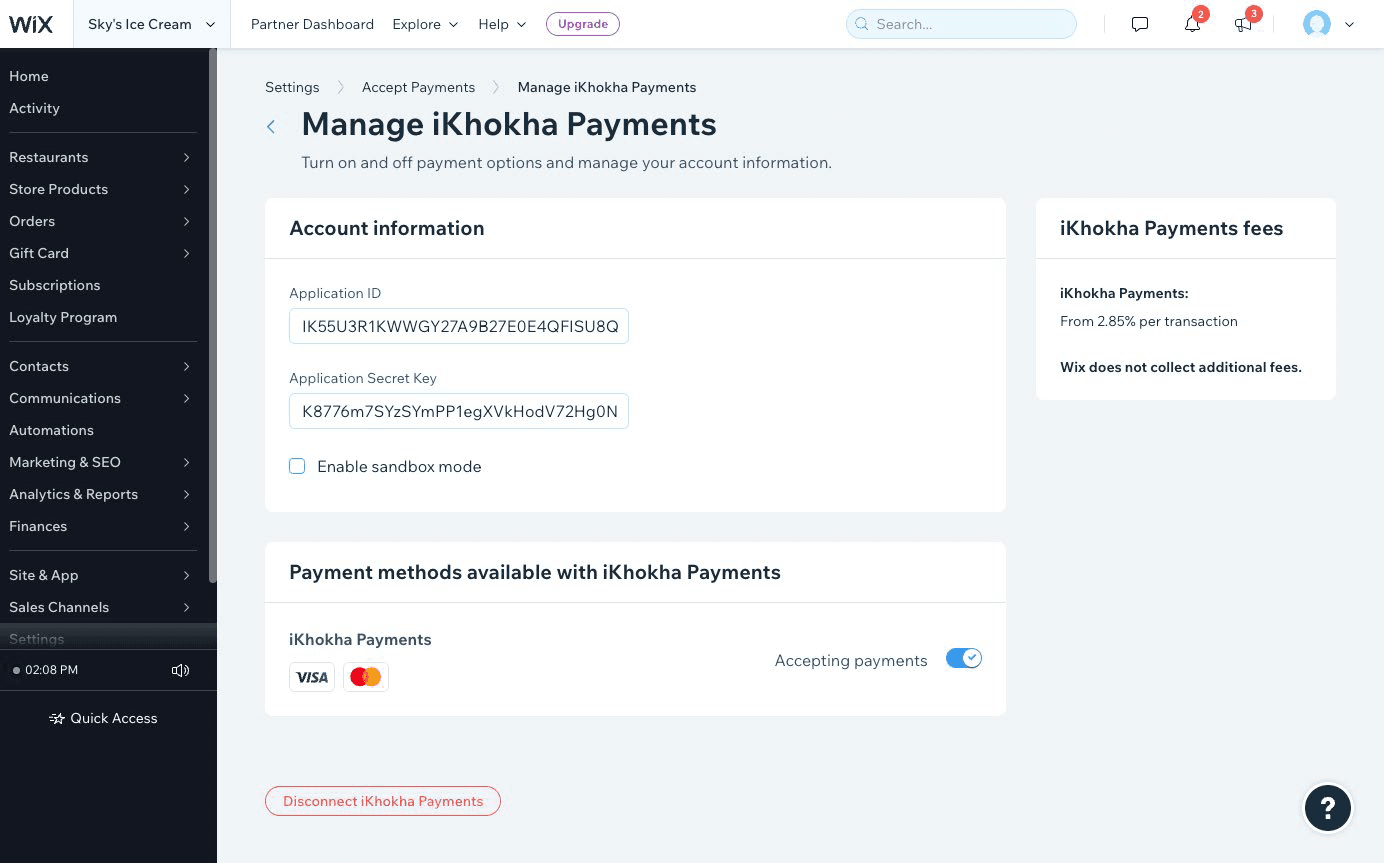
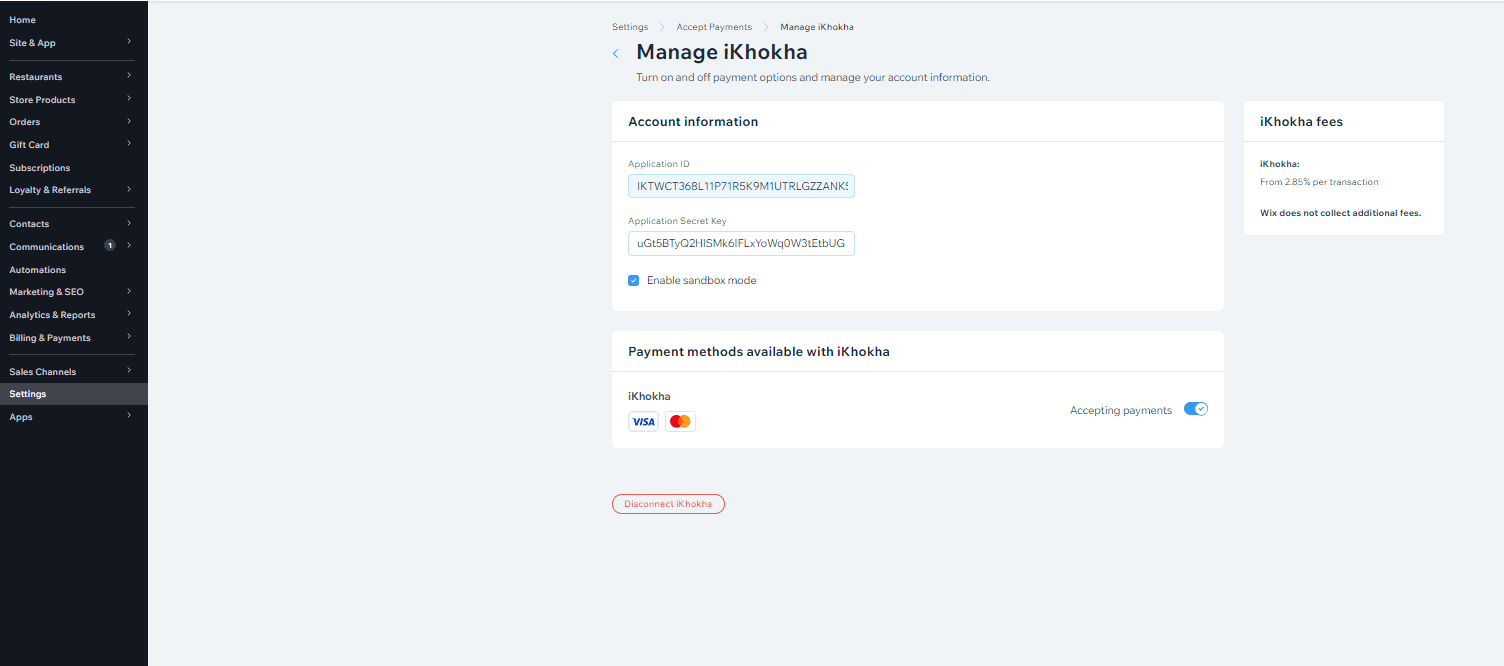
Paste (ctrl + v) the Application ID key into the “Application ID Key” field (A).

Navigate back to the iK Dashboard and copy (ctrl + c) the “Application Secret Key” field (B).

Click “See More Payment Options”.

Navigate to the Wix settings tab and paste (ctrl + v) into the “Application Secret Key” field (B).

Ensure that “Enable Sandbox Mode” is checked and then save the changes.

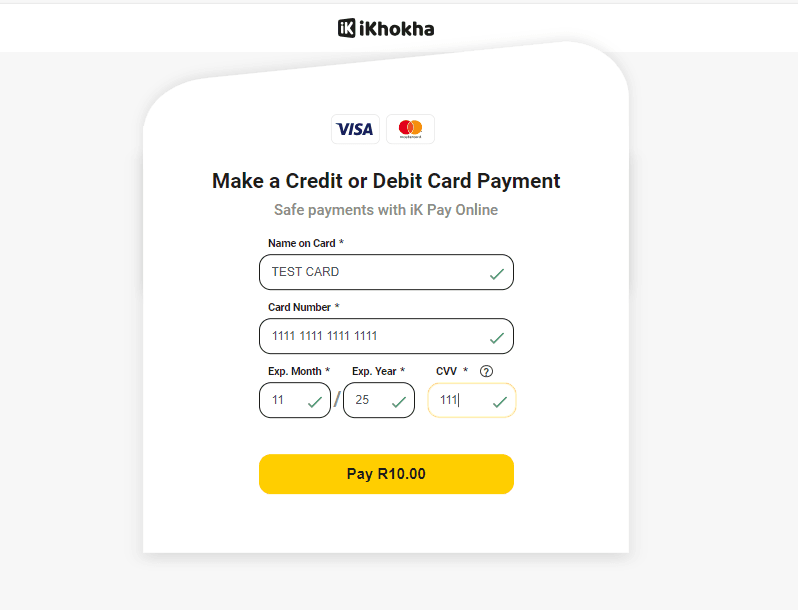
Perform a test transaction of any amount on your website using the following card details (use card details below).

When the test transaction is successful, return to the plugin configuration screen and deselect “Enable Sandbox Mode”.
Then save the changes and you’re done! Enjoy transacting with iKhokha.
Get help instantly on WhatsApp, with our chatbot Kelly, or by requesting a call me back.
You can also call 087 222 7000 or email support@ikhokha.com